
From Zero to Stereo: Getting Started to Browser Based Development
In today's fast changing technology landscape, speed is everything. For quick adaptation and usage RAiV has a web based graphical user interface. Users can login to RAiV's web interface by using a browser. After the login, users can upload their python codes and AI model. With this web based approach and our Python SDK, you can develop your custom applications in short time and decrease your time to market.
How it Works?
As we have explained in our previous posts, RAiV has a sandboxed Python environment to run user's Python codes. After the python files are uploaded by using the web interface, RAiV checks the codes for semantic correctness and executability. If all of the codes pass the checks, then RAiV runs them.
Preliminary
Before running your first code, please check that:
- Your browser is up to date.
- Power cable is connected to RAiV.
- Ethernet cable is connected from PC to RAiV, directly.
- Your computer's wired network interface has the following configuration:
- RAiV is powered on.
| IP | 192.168.10.2 |
| Netmask | 255.255.255.0 |
| Gateway | 192.168.10.1 |
How to run your code
In order to run your Python code, you must have a file with the name user_main.py. The entry point for your Python code is the main() function in the user_main.py file. In other words, RAiV searches for the user_main.py file and calls the main() function.
Prepare & Upload Your Python Code
In this post we are going to demonstrate how to run the simplest Python script, that is the "Hello World" script:
def main():
    # Greet the world
	print("Hello World")

if __name__ == "__main__":
    main()
Copy the code above and save it to the user_main.py file.
Now, use your web browser to open the web based graphical user interface of RAiV. The default IP address of RAiV is:
http://192.168.10.55When the page loads, the login screen below is shown:
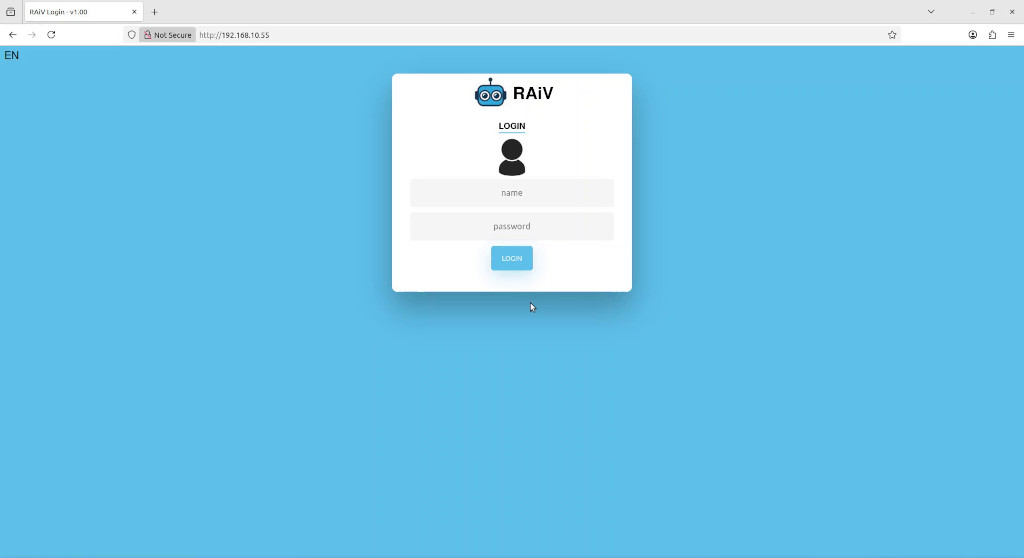
Login as user. Default user name and password are:
| Name | user |
| Password | 123456 |
After successfully login as user, the user web interface is displayed. Click to "Python Deployment" button on the right of the screen to open the Python upload panel:
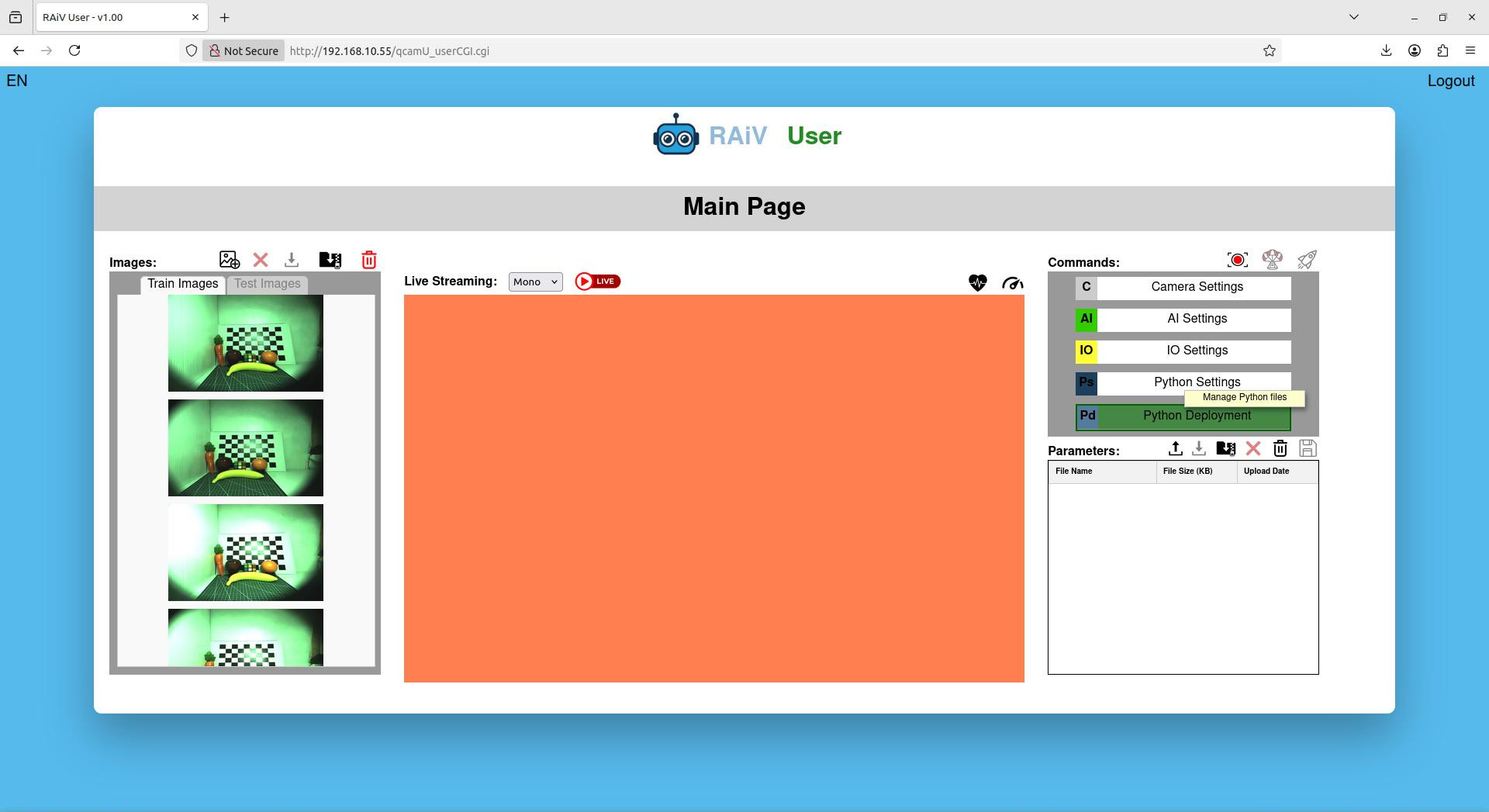
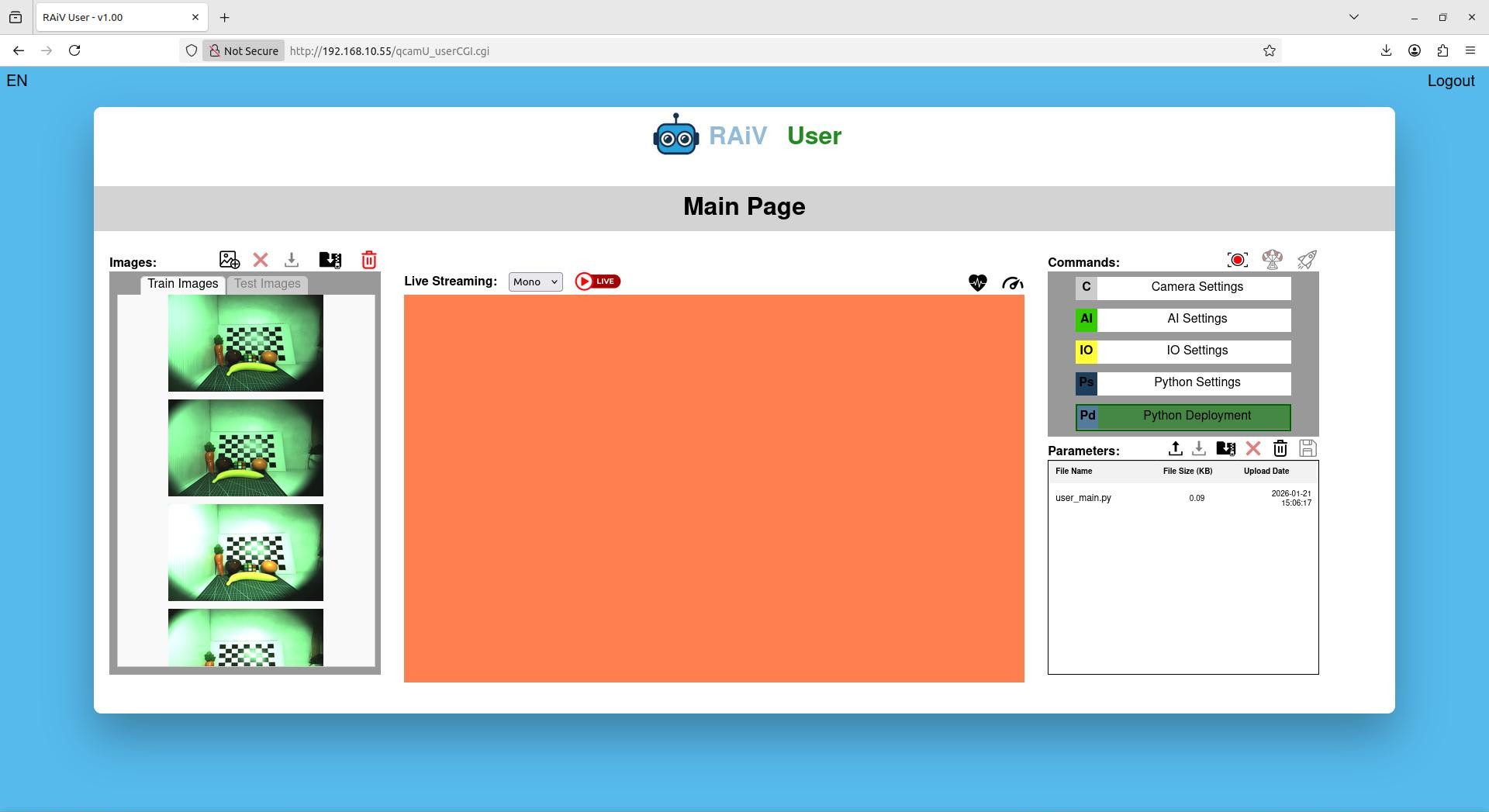
Click to the "Upload Python Files" button on the "Python Deployment" panel. The browser will show a file selection dialog box. Select the previously created user_main.py for uploading. After the successful upload, the file displayed on Python Deployment panel:
Live Action
Now that the user_main.py file has been uploaded, let's check its execution. Click to "Python Settings" button on the right of the screen to open the Python settings panel:
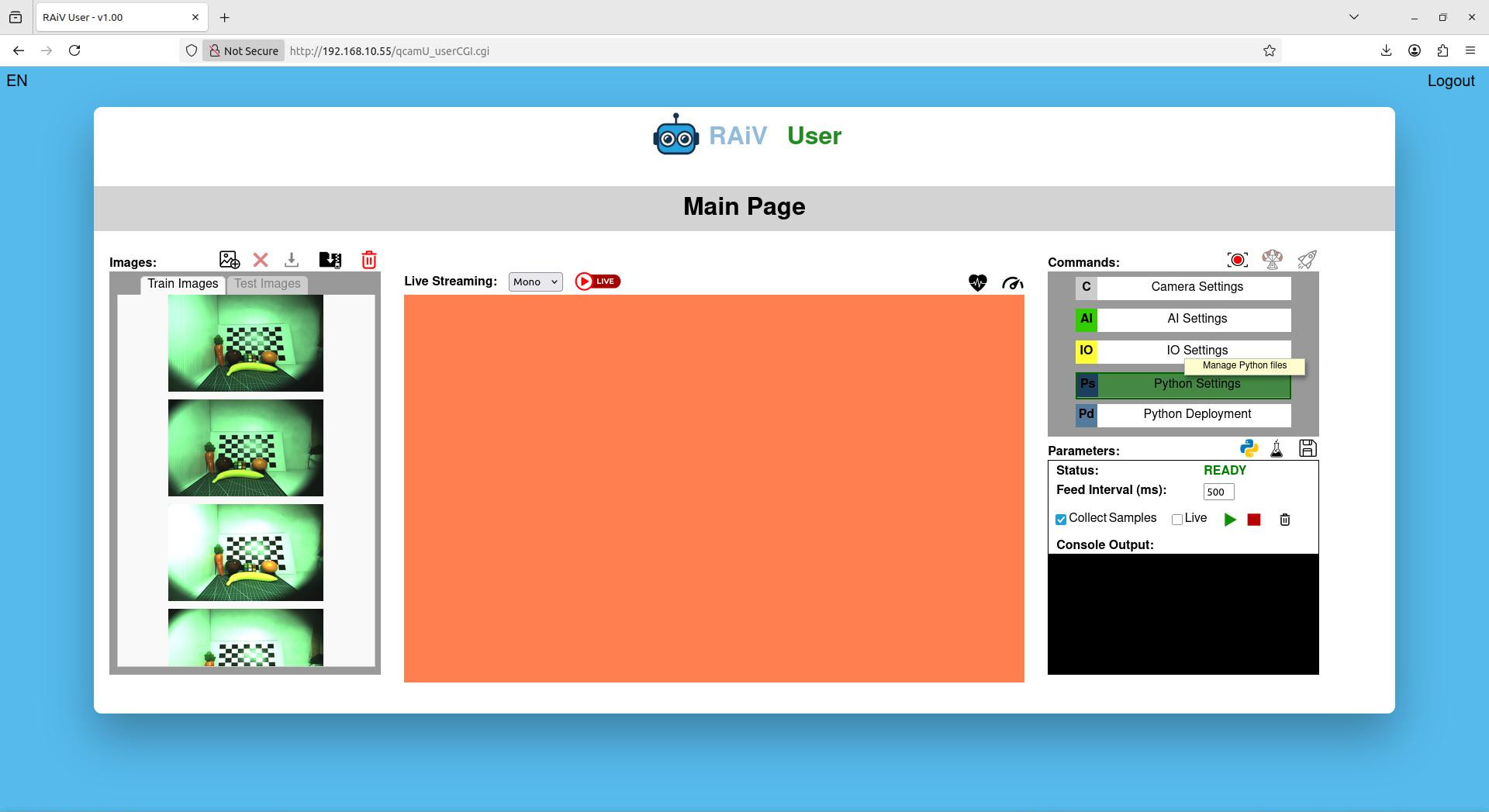
After opening the "Python Settings" panel, hover over the black "Console Output" area. When you hover over the black area, two buttons will appear "Get Output" and "Copy". Press the "Get Output" button to retrieve the console output of the python console.
Tip: You can configure the "USB Debug" connector at the back panel of RAiV to get the console output. Please refer to our Github Repository for the example codes.
What is Next?
Check our Python SDK:
RAiV Python SDKCheck our Github Repository For Sample Codes:
Our Github RepositoryCheck our next example:
Time for Connection: Building TCP Clients and Servers